

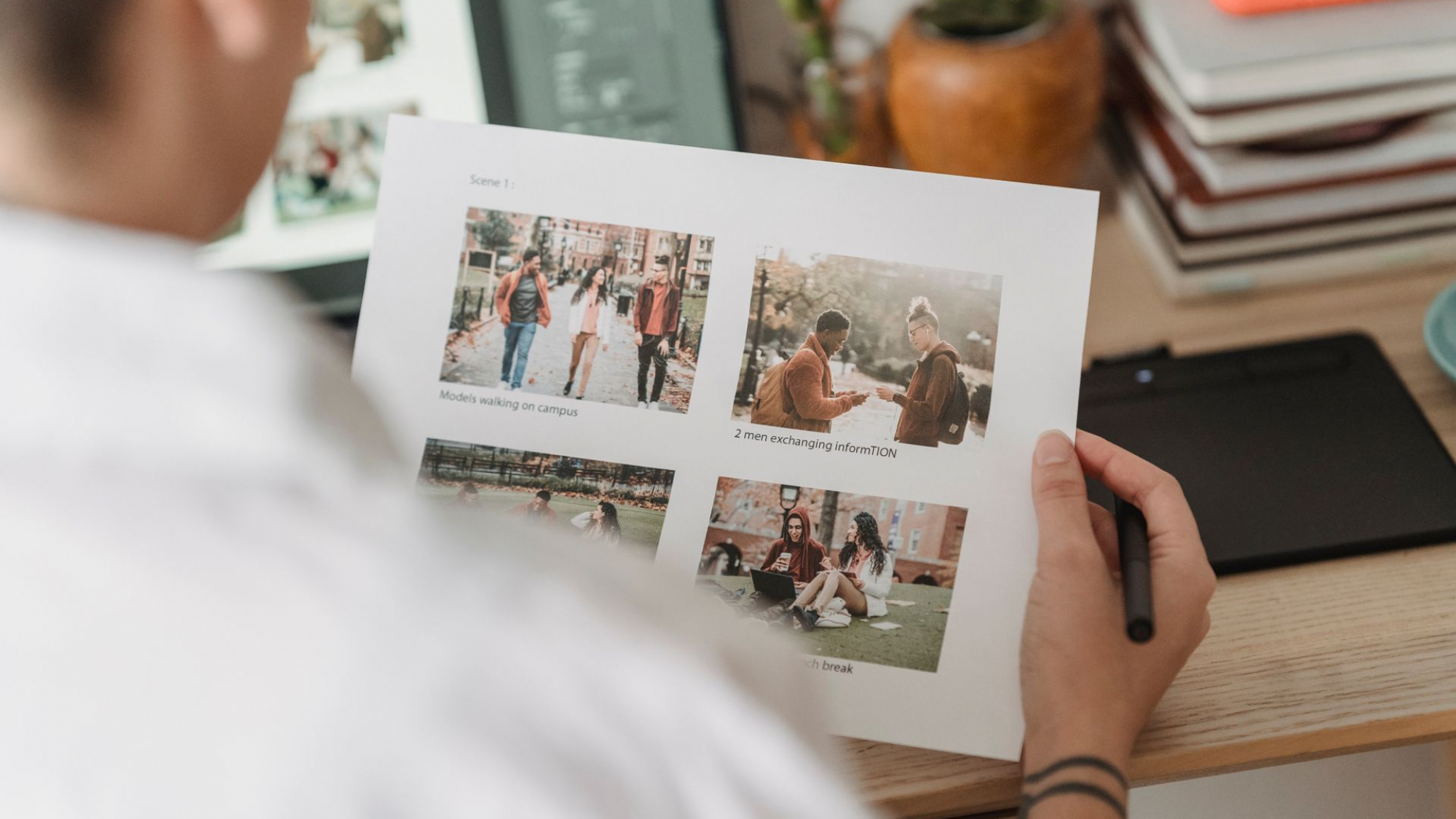
Need to turn a PDF into a picture you can drop into a slide, email, or social post? Converting a PDF to an image is one of the most common file jobs there is — and you can do it in a few seconds, for free, right in your browser. This guide walks you through exactly how to convert PDF to JPG or PNG, how to choose the right settings, and how to fix the usual headaches like blurry output or password-protected files.
If you just want to get it done, you can jump straight to our free PDF to Image converter — no signup, no watermark, and nothing to install. Otherwise, read on.
Why convert a PDF to an image?
PDFs are great for sharing documents that should look the same everywhere, but they are awkward when you only need the visual of a page. Turning a PDF page into a JPG or PNG is useful when you want to:
- Drop a single page into a PowerPoint or Google Slides deck.
- Attach one page to an email or message without sending the whole PDF.
- Post a page to social media, a blog, or a forum that accepts images only.
- Use a page as a thumbnail or preview on a website.
- Pull a chart, diagram, or certificate out of a document as a picture.
How to convert PDF to image (step by step)
Here is the quickest way to do it without installing software or handing your file to a stranger’s server:
- Open the PDF to Image tool.
- Drag your PDF onto the upload box, or tap it to pick the file from your device.
- Choose your image format — PNG for sharp text, JPG for smaller files.
- Pick a resolution: Standard for screens, or 300 DPI for printing.
- (Optional) Type a page range like
1-3,5if you only need certain pages. - Click Convert to images, then download each page — or grab them all in one ZIP.
Because the whole process runs in your browser, there is no upload wait and no download wait. The conversion happens instantly on your own machine.
PDF to JPG vs PDF to PNG: which should you choose?
This is the question that trips people up most, so here is the simple rule:
- Choose PDF to JPG when the page is mostly photos or scanned content and you want the smallest possible file. JPG compresses photographic detail beautifully.
- Choose PDF to PNG when sharp text, thin lines, logos, charts, or diagrams matter. PNG is lossless, so edges stay crisp with no compression smudging.
If you are unsure, PNG is the safe default for documents because text stays clean. Switch to JPG only when file size becomes a problem.
Getting the best quality (resolution and DPI explained)
Image quality comes down to resolution, measured in DPI (dots per inch). A PDF page has no fixed pixel size on its own — the converter decides how many pixels to render based on the DPI you pick:
- 100 DPI — fine for quick on-screen previews and web use; smallest files.
- 150 DPI — a good all-round choice for clear screen images.
- 300 DPI — print quality; use this when the image will be printed or zoomed into.
Higher DPI means sharper images but larger files and more memory use, so for very large PDFs at 300 DPI, a laptop or desktop will handle the job more comfortably than a phone.
Converting only specific pages
You rarely need every page. To export just a few, type a page range into the pages box. The format is flexible:
1-3converts pages 1, 2 and 3.1,4,9converts only those three pages.2-5,8mixes a range and a single page.- Leave it blank to convert all pages.
Is it safe to convert a PDF online?
With most online converters, your file is uploaded to a remote server, processed there, and then sent back — which is a real privacy concern for invoices, contracts, ID documents and statements. The BSM Sites converter works differently: it runs entirely in your browser, so your PDF never leaves your device. Nothing is uploaded, stored, or seen by anyone else.
Converting PDF to image on your phone
The tool is fully mobile-friendly. On Android or iPhone, open the tool in Chrome or Safari, pick a PDF from your Files app or storage, convert, and save the images straight to your camera roll or share them from the browser. For big documents, stick to the standard resolution on mobile to keep things fast.
Common problems and how to fix them
The PDF will not open or convert. If it is password-protected or encrypted, it cannot be rendered until it is unlocked. Open it in your PDF reader, remove the password, save a copy, and convert that.
The images look blurry. You used too low a resolution. Re-run the conversion at 150 or 300 DPI for sharper output.
The files are too big. Switch from PNG to JPG, or lower the DPI. For photo-heavy pages, JPG at 150 DPI is a good balance.
A scanned page came out with a grey or off-white edge. That is from the original scan, not the conversion — the tool renders pages on a clean white background.
Related tools you might need
Working with PDFs and images? These free tools pair well with this one:
- Image to PDF — do the reverse and combine images back into a PDF.
- PNG to JPG — shrink the images you just exported.
- Merge PDF — combine several PDFs before converting.
- Browse all tools — the full BSM Sites toolkit.
Frequently asked questions
Can I convert a PDF to an image without uploading it?
Yes. Browser-based tools like the BSM Sites PDF to Image converter render your PDF locally on your own device, so the file is never uploaded to a server and stays completely private.
What is the best resolution to convert a PDF to image?
For on-screen use, 100 to 150 DPI is plenty. For printing or high-detail work, use 300 DPI, which renders each page at a larger pixel size for sharper results at the cost of a larger file.
Is PDF to JPG or PDF to PNG better?
Use JPG for smaller files and photo-heavy or scanned pages. Use PNG when you need crisp text, lines, charts or diagrams, because PNG is lossless and keeps edges perfectly sharp.
Convert your PDF to images now
That is everything you need. Pick your format, choose a resolution, and let the tool do the rest — privately, in your browser, in seconds. Open the free PDF to Image converter →
Add a Comment